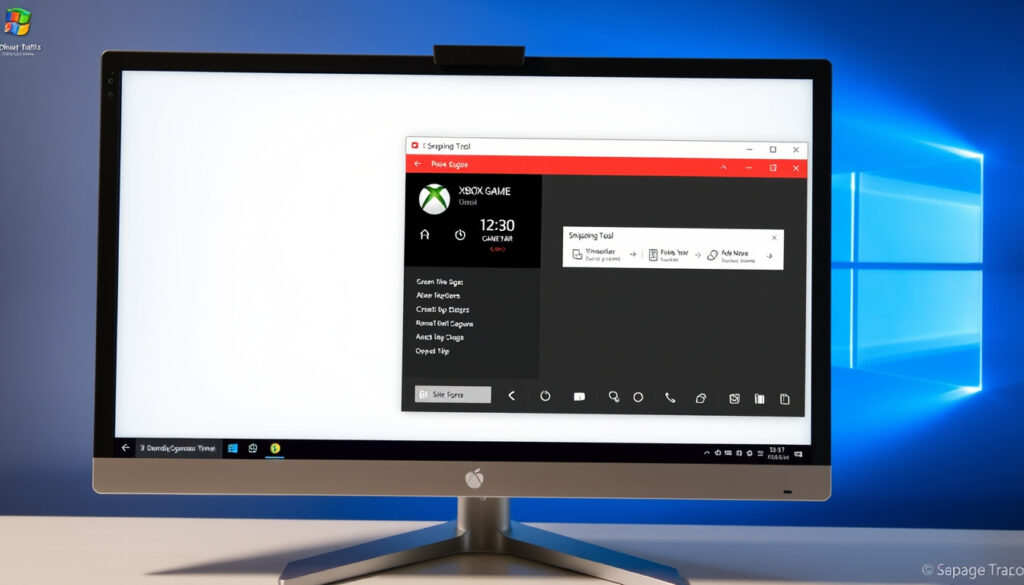
Screen Recording Windows – Game Bar and Snipping Tool
Screen recording on Windows has become an essential skill for content creators, gamers, and professionals alike. Whether you need to capture a software tutorial, save a gaming highlight, or document a video call, Windows 10 and 11 include built-in tools that make the process straightforward and cost-free.
Most users don’t realize that neither operating system requires expensive software subscriptions to record their screens. Microsoft’s integrated tools handle the majority of everyday recording tasks, from quick desktop clips to extended gaming sessions. This guide covers everything from basic setup to troubleshooting common issues.
Does Windows Have a Built-in Screen Recorder?
Windows 10 and 11 both ship with native screen recording capabilities, eliminating the need for third-party software in most scenarios. The operating system provides two primary built-in options that cater to different recording needs and experience levels.
Xbox Game Bar (Win10/11), Snipping Tool (Win11+)
Free, no additional software required
Microphone and system sound capture
No advanced editing features included
- The Xbox Game Bar offers quick access via keyboard shortcuts and works with most games and applications
- Snipping Tool received video recording capabilities in Windows 11’s 22H2 update, expanding desktop capture options
- Third-party solutions like OBS Studio provide advanced features for streaming and complex workflows
- Recordings automatically save to the Videos/Captures folder in MP4 format
- Game Bar can capture extended footage with audio enabled
| Tool | Operating System | Audio Support | Max Length | Editing Capabilities |
|---|---|---|---|---|
| Xbox Game Bar | Windows 10/11 | Yes | Unlimited | Basic trim only |
| Snipping Tool | Windows 11 | Yes | Unlimited | Annotate and trim |
| OBS Studio | All platforms | Yes | Unlimited | Full editing suite |
| ShareX | Windows 10/11 | Yes | Unlimited | Various post-processing |
How to Screen Record on Windows Using Xbox Game Bar
The Xbox Game Bar serves as Microsoft’s primary screen recording solution for Windows 10 and 11. Originally designed for gamers, the tool functions effectively across any application running in windowed or fullscreen mode. You can learn more about the Game Bar’s capabilities through the official Microsoft support documentation.
Quick Start Guide
Activating the Game Bar requires a brief initial setup on first use. The overlay interface provides intuitive controls without overwhelming newer users with options. Recording begins within seconds once configured.
- Open Game Bar: Press Windows + G or search “Game Bar” in the Start menu
- Enable the feature: Navigate to Settings (Windows + I) > Gaming > Xbox Game Bar and toggle it on
- Start recording: Press Windows + Alt + R directly, or click the red circle icon in the Capture widget
- Stop recording: Press Windows + Alt + R again or click the square stop button
Recording Controls
The Game Bar overlay displays a timer confirming active recording and provides quick access to essential functions. These controls remain accessible throughout the recording session without interrupting the capture.
- Toggle microphone: Press Windows + Alt + M during recording to enable or disable audio capture
- View timer: A small on-screen timer confirms the recording remains active
- Access recordings: Files default to This PC > Videos > Captures in MP4 format
Audio Settings Configuration
System audio capture requires separate configuration, as the feature starts disabled by default. Users must explicitly enable audio recording to capture game sounds, music, or other computer audio alongside their microphone input.
To capture system audio alongside microphone input, open Game Bar with Windows + G, navigate to Settings, select the “Capturing” section, and choose the “All” option. This captures all computer sounds, including system audio, microphone, and game audio simultaneously.
Background Recording
The Game Bar supports background recording for gaming scenarios, capturing the final moments of gameplay automatically. This feature proves particularly valuable for recording spontaneous highlights without manual timing.
- Enable “Record in the background while I’m playing a game” in Game Bar settings
- Press Windows + Alt + G to capture the last moments retroactively
- This setting requires Game Bar background recording to be enabled beforehand
How to Screen Record with Snipping Tool on Windows 11
The Snipping Tool, long known for screenshot functionality, received video recording capabilities in Windows 11’s 22H2 update. This addition provides a simpler alternative for quick desktop clips without the gaming-focused interface of the Game Bar.
The Snipping Tool works best for short-form content capture, such as demonstrating a specific workflow or capturing a brief error message. Its integration with Windows means no additional installation or configuration required. For longer recording sessions or complex gaming content, the Xbox Game Bar remains the recommended option.
Choose Xbox Game Bar for gaming clips and extended recordings. Select Snipping Tool for quick desktop demonstrations, error documentation, or short tutorials under a few minutes in duration.
Best Free Screen Recorders for Windows
While built-in tools handle most recording needs, certain scenarios require third-party software. Professional streaming, DRM-protected content capture, and multi-scene productions benefit from advanced recording solutions available through platforms like ShareX.
| Use Case | Recommended Tool |
|---|---|
| Quick in-game clips and app recordings | Xbox Game Bar |
| Short desktop clips | Snipping Tool |
| DRM-protected content | Third-party recorder |
| Long multi-scene productions | Third-party recorder |
| Advanced streaming workflows | OBS Studio or ShareX |
OBS Studio stands out as the most capable free option, offering open-source functionality used by professional streamers worldwide. The software supports complex scene compositions, real-time switching, and extensive customization options. ShareX provides similar capabilities with a focus on efficiency and quick capture workflows.
Tips for Screen Recording on Windows
Understanding common limitations and troubleshooting methods ensures smooth recording sessions. Several recurring issues affect users across different hardware configurations and software setups.
Troubleshooting Common Issues
Game Bar visibility problems typically stem from settings or hardware mode conflicts. Most issues resolve through straightforward configuration adjustments without requiring technical expertise.
The Game Bar cannot record DRM-protected content such as Netflix streams or protected media files. Certain games with anti-cheat software may also block recording functionality. In these cases, third-party solutions become necessary alternatives.
- Game Bar won’t appear: Verify the feature is enabled in Settings and your PC is not running in tablet mode without a keyboard attached
- Some games blocked: Certain titles with anti-cheat software prevent recording to protect competitive integrity
- No editing features: Built-in tools lack editing capabilities, requiring separate software for clip modification
- DRM content: Protected media cannot be captured using native tools
Optimizing Recording Quality
Storage space management becomes important for extended recording sessions. MP4 files from the Game Bar consume approximately 1-2GB per minute depending on content complexity and resolution settings.
- Ensure sufficient free space in your Videos folder before recording extended sessions
- Close unnecessary applications to reduce system resource competition
- Consider hardware limitations when recording graphically intensive content
- Windows 10 version 1809 and later, along with all Windows 11 builds, support these recording features
Evolution of Screen Recording on Windows
Screen recording capabilities have expanded significantly since their introduction, reflecting Microsoft’s response to user demand for built-in capture functionality. The tools have matured considerably through iterative updates.
- : Xbox Game Bar screen recording introduced in Windows 10, initially focused on gaming capture
- : Windows 11 preview released with enhanced capture functionality and updated interface
- : Snipping Tool video recording feature added through Windows 11 22H2 update
- : Windows 11 24H2 update delivered minor UI improvements to capture tools
Built-in Tools versus Third-Party Solutions
Evaluating built-in options against third-party software requires considering specific use cases, technical requirements, and workflow preferences. Both approaches offer distinct advantages depending on the recording scenario. For those interested in gaming, Xbox Cloud Gaming Fortnite offers a way to play Fortnite without needing to download it.
| Established Capabilities | Considerations and Limitations |
|---|---|
| Built-in tools are completely free with no software installation required | Third-party software quality varies; testing recommended for specific hardware configurations |
| Microsoft provides direct support and regular updates | Advanced editing features require separate applications regardless of choice |
| Works reliably on Windows 10 1809+ and all Windows 11 versions | DRM content and certain games remain incompatible with built-in recording |
| No advertisements or watermarks on captured content | Gaming-specific optimizations may prioritize performance over quality |
Understanding Screen Recording Context
Screen recording serves diverse purposes across professional and personal contexts. Tutorial creation, gaming highlights, software documentation, and remote collaboration each benefit from different recording approaches and tool selections.
The built-in tools from Microsoft specifically address common everyday recording needs without imposing the learning curve associated with professional software. Content creators focused on gaming typically prefer the Game Bar’s instant access and gaming-optimized controls, while business users often favor the Snipping Tool’s simplicity for quick documentation tasks.
Expert Perspectives on Windows Recording Tools
“Xbox Game Bar provides instant replay and screen recording capabilities directly within Windows, making it easy to capture and share your favorite gaming moments.”
— Microsoft Support Documentation
“The Game Bar overlay gives you quick access to widgets for performance monitoring, audio controls, and screen recording without leaving your current game or app.”
— Xbox Support Resources
These tools continue evolving with each Windows update, adding minor improvements and addressing user-reported issues. The integration of video recording into the Snipping Tool particularly demonstrates Microsoft’s willingness to expand built-in capabilities based on community feedback.
Key Takeaways for Windows Screen Recording
Windows 10 and 11 provide capable screen recording solutions that meet most everyday needs. The Xbox Game Bar handles gaming and application recording with familiar keyboard shortcuts, while the Snipping Tool offers simple desktop clip capture. For users seeking advanced features, third-party options like OBS Studio provide professional-grade capabilities at no cost. Understanding when to use each tool ensures optimal results across different recording scenarios.
Those interested in exploring related Windows features may find value in reviewing our Outlander Season 6 streaming guide for additional entertainment capture techniques or the Risk of Rain series guide for gaming-specific recording tips.
Frequently Asked Questions
Can you screen record with audio on Windows?
Yes, both the Xbox Game Bar and Snipping Tool support audio recording. The Game Bar requires enabling audio capture in its settings menu before recording to include system sounds.
How to edit screen recordings on Windows?
Built-in tools provide only basic trimming. For advanced editing, Windows 11 includes Clipchamp, or users can employ third-party video editing software of their choice.
Does Windows have a built-in screen recorder?
Yes, Windows 10 and 11 include the Xbox Game Bar as the primary built-in recorder. Windows 11 also features video recording within the Snipping Tool following the 22H2 update.
How to record screen without additional software?
Open the Xbox Game Bar with Windows + G, ensure recording is enabled, then press Windows + Alt + R to start capturing. No downloads or installations are required.
Why won’t Game Bar appear when pressing Windows + G?
Verify that Xbox Game Bar is enabled in Settings > Gaming > Xbox Game Bar. The feature may not appear in tablet mode without a keyboard, and some games block recording functionality.
Where do screen recordings save on Windows?
Game Bar recordings automatically save to This PC > Videos > Captures in MP4 format. Files can be moved or edited after capture completion.
Can you screen record Netflix on Windows?
No, the Xbox Game Bar cannot record DRM-protected content like Netflix streams. Third-party software may offer limited workarounds, but these often raise legal concerns.
More related posts
 Bianca Censori Grammys Dress: What Happened, Was It Illegal?
 Peggy Gou: Biography, Career, Net Worth, and Relationship Facts
 Kira Pregiato: Latest Verified Facts and Updates (2025)
 Odell Beckham Jr: Current Status, Suspension, and Health Update
 Sammy Virji: Real Name, Ethnicity, Age & UK Garage Rise
 Tony Sirico Death: Cause, Criminal Past, Sopranos Role
 Bee Venom Cream – Benefits Risks and Evidence
 Mick Molloy: Wife, Comedy Career, Pubs, and Family